
How to Send a Sale to Tally and Save It
Create an AutoSale entry, then either save it in Taxlink to review later or send it straight to Tally.
Step 1: Open the AutoSale module
Open AutoSale and start a new entry.
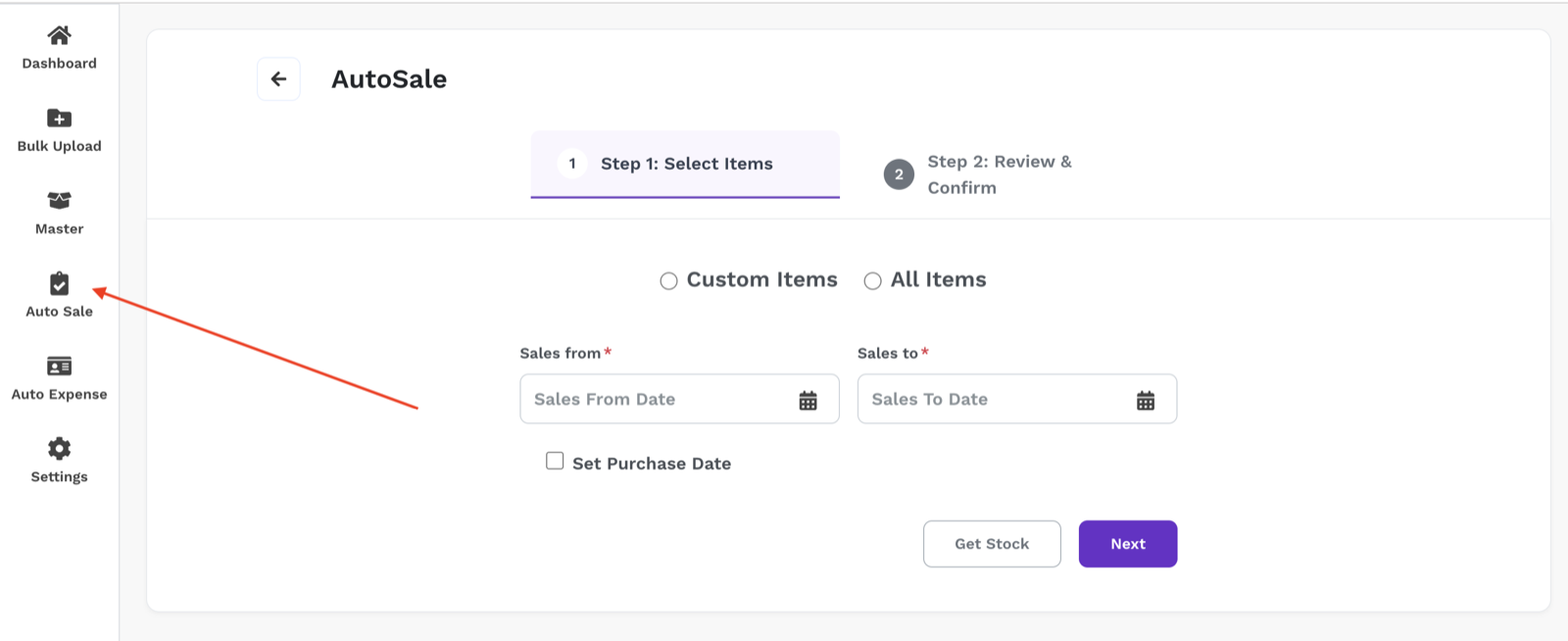
- Click "Auto Sale" in the left sidebar
- Click "Add Autosale"
- Wait for the form to load
Click the screenshot to open it full size. Step 2: Fill in Sales From and Sales To
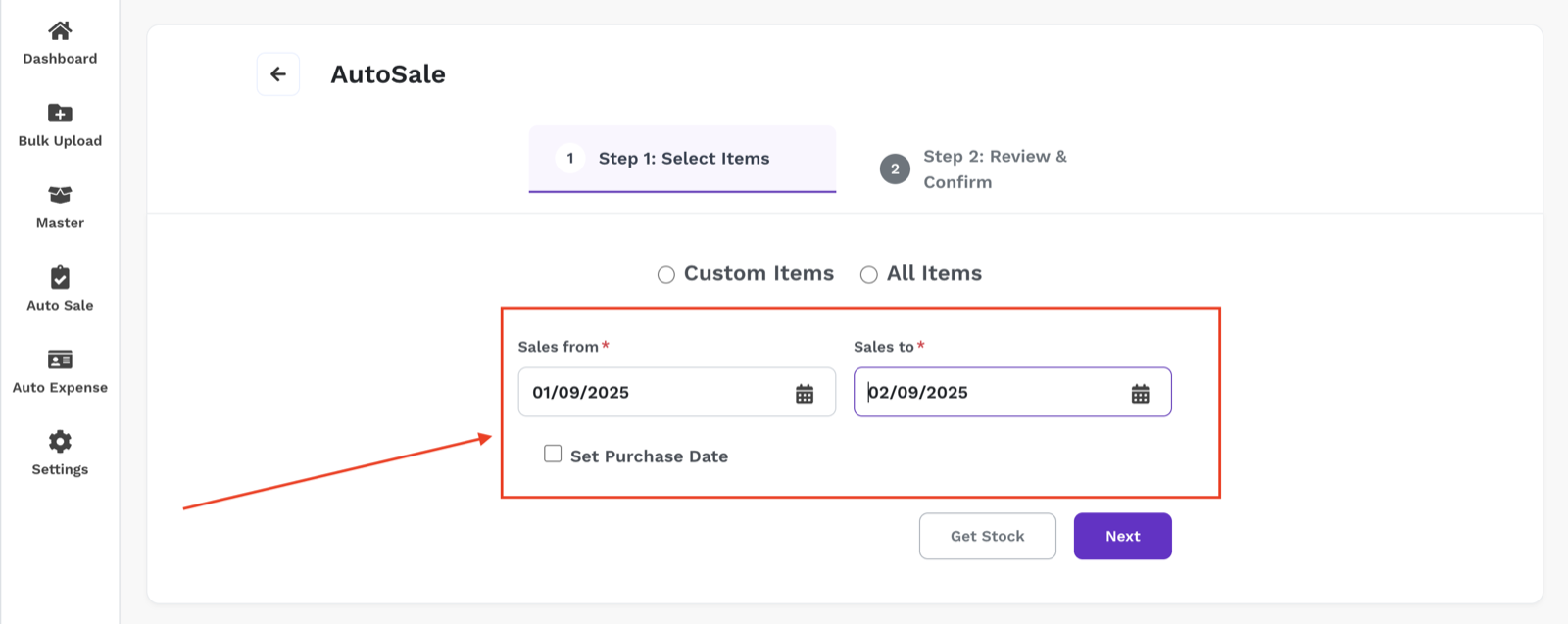
Set the date range for the sales.
- Enter or pick the Sales From date (DD/MM/YYYY)
- Enter or pick the Sales To date
- Check both dates
Click the screenshot to open it full size. Step 3: Click Next
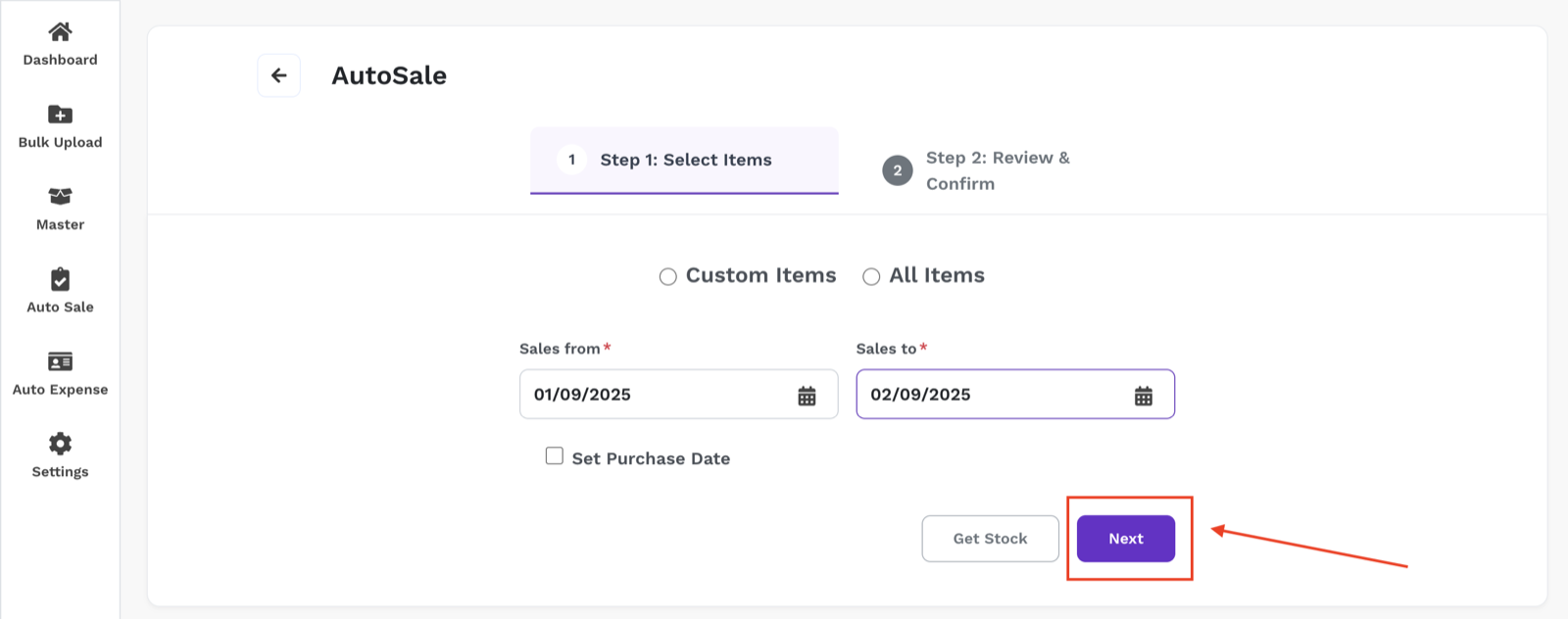
Confirm the date range to move on to the voucher details.
- Check the date range
- Click "Next"
- The voucher detail fields appear
Click the screenshot to open it full size. Step 4: Fill in the voucher details
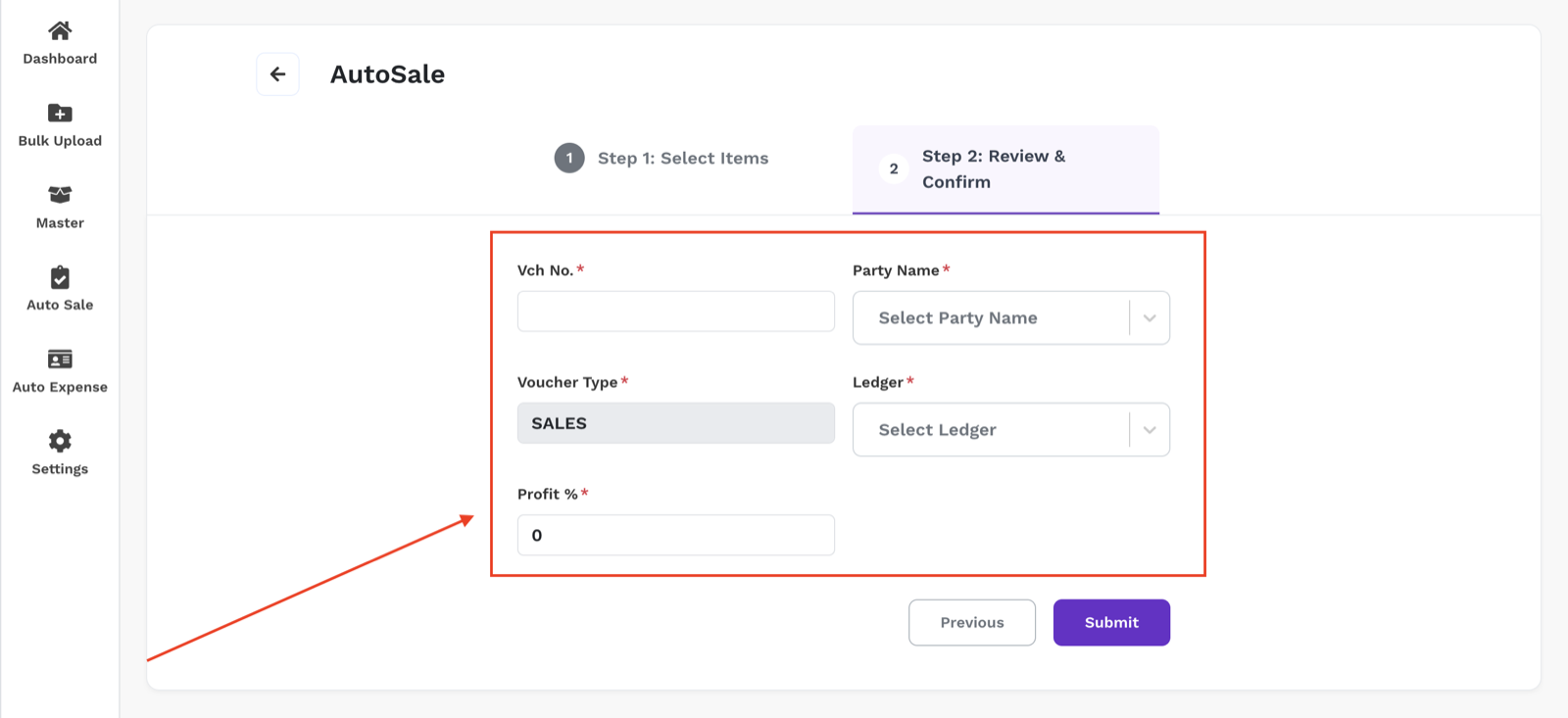
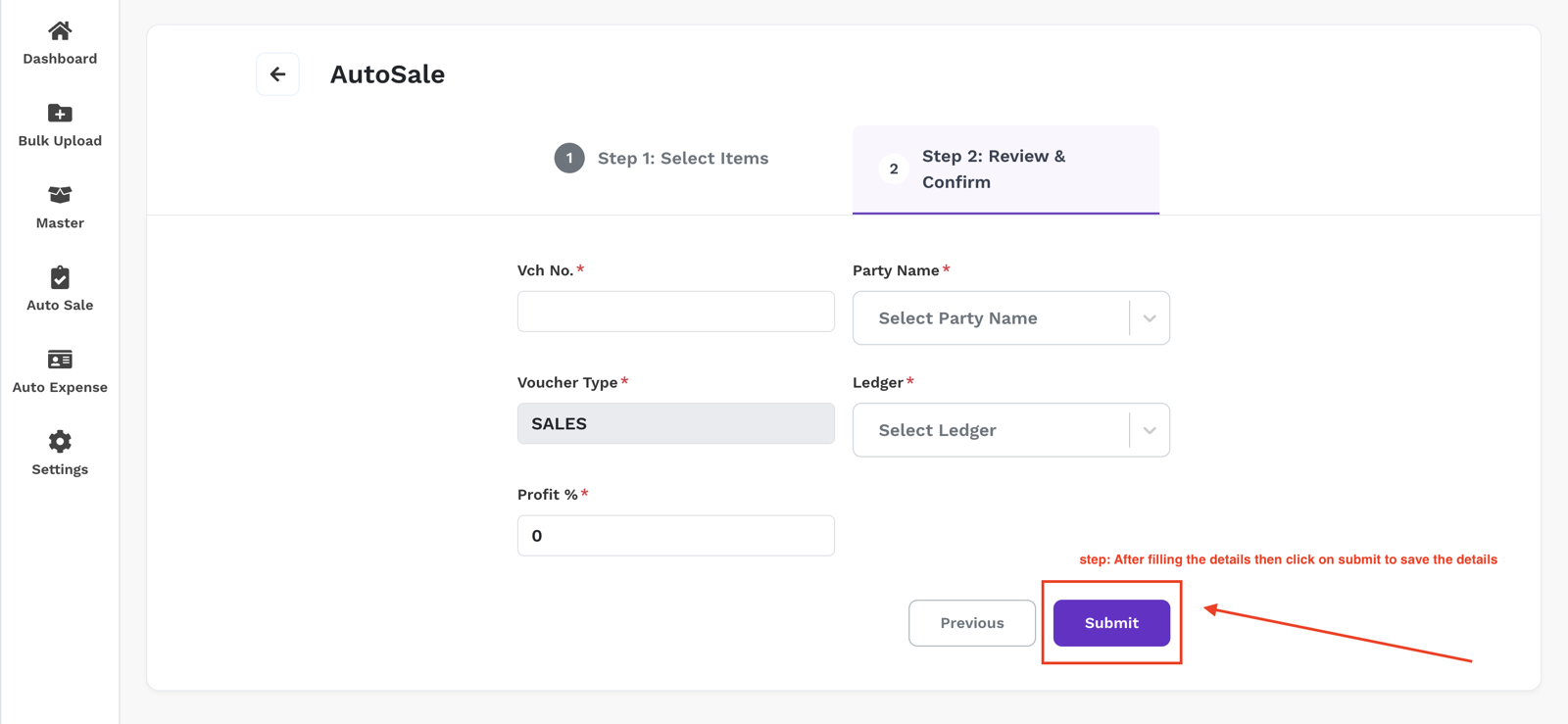
Complete voucher name, profit, party name and ledger.
- Voucher Name: identifies the transaction
- Profit: percentage or fixed amount
- Party Name: the customer
- Ledger: choose from the dropdown
- Make sure all mandatory fields are filled
Click the screenshot to open it full size. Step 5: Click Submit
Submit the voucher details.
- Review the voucher information
- Click "Submit"
- Wait for the confirmation that the entry was created
Click the screenshot to open it full size. Step 6: Choose Save or Send to Tally
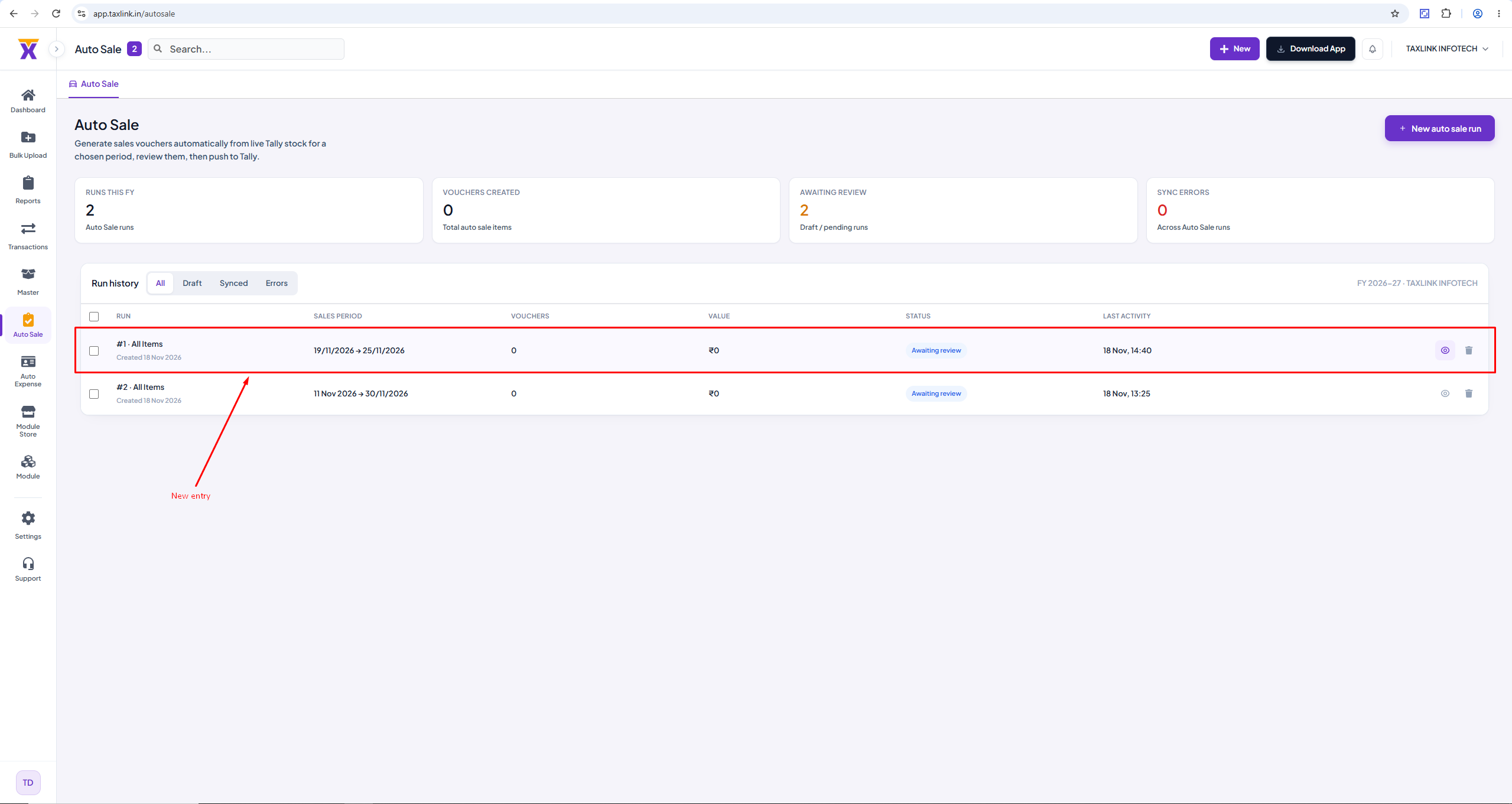
Save the entry in Taxlink, or send it to Tally right away.
- Save: keeps the entry in Taxlink so you can review or edit it and send it later
- Send to Tally: posts the entry to Tally through the Taxlink Connector
- The AutoSale list shows the entry's progress and sync status
Click the screenshot to open it full size.
Tips
Save to review first
Save when you want to check entries, or collect several, before sending them to Tally.
Send when ready
Send to Tally when the entry is final and you want it in your books immediately.
Check the voucher details
Voucher name, profit, party name and ledger all flow into Tally, so verify them before sending.
Still stuck?
Email support@taxlink.in or call +91 84848 48833 (Monday to Saturday, 9 AM – 6 PM IST).